
The New Member Form allows prospective members to submit their information online and, once approved, be added directly to your RakefetOnline database.
Step 1: Open the New Member Form Setup
Navigate to:
Setup → Database → New Member Form
Step 2: Configure the Form
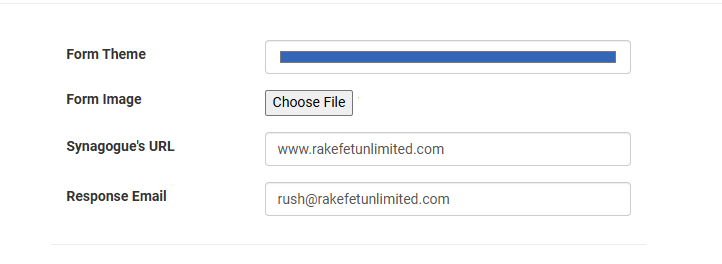
Complete the basic form settings:
- Select a Form Theme
- Upload a Form Image
- Enter your synagogue's Website URL
- Add one or more Response Email Addresses
- Create a Custom Form Message welcoming prospective members and describing your congregation.
Tip: Include membership benefits, community highlights, and contact information in your welcome message.
Step 3: Select Your Fields
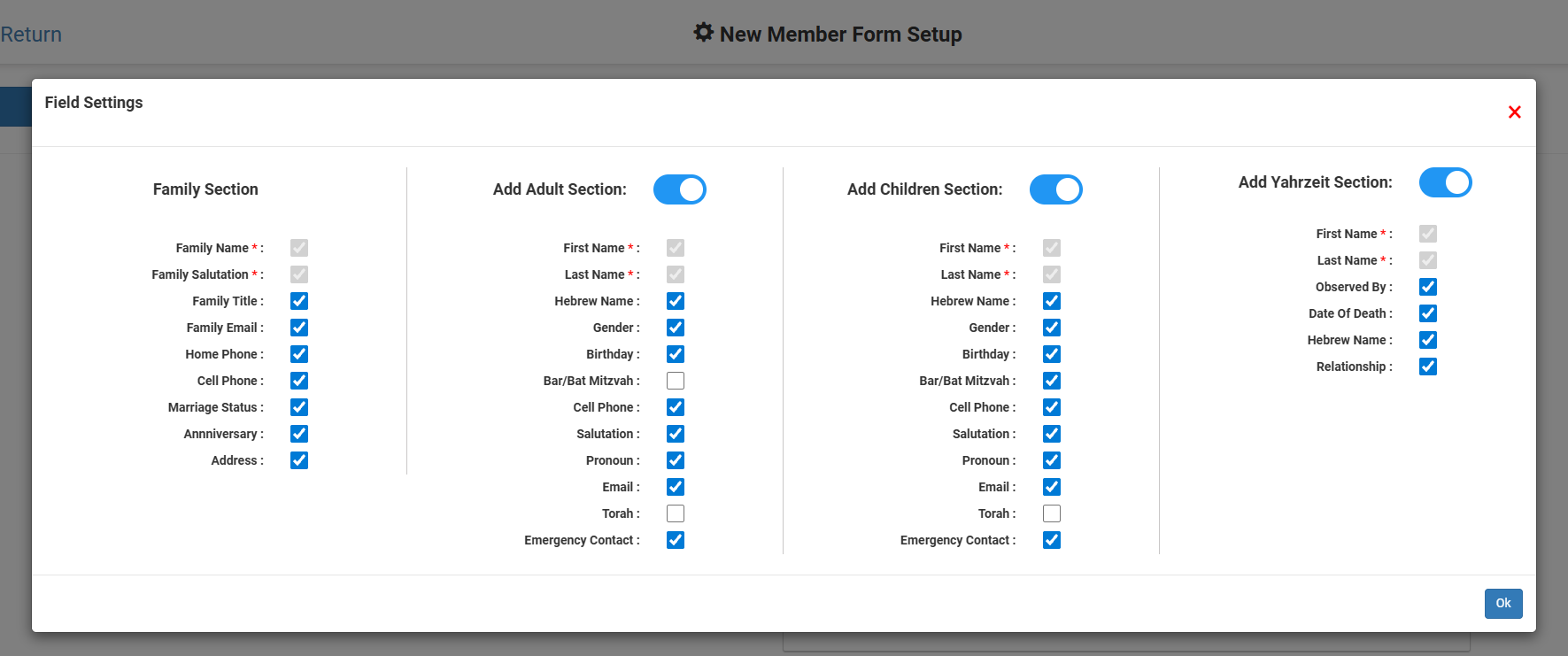
Click Fields Setup and choose which information you want to collect.
Common fields include:
- Family Name
- Adult Names
- Email Addresses
- Phone Numbers
- Mailing Address
- Children's Information
- Yahrzeit Information
- Membership Interests
- Volunteer Interests
Only select the fields you truly need to keep the form user-friendly.
Step 4: Enable Online Membership Payments (Optional)
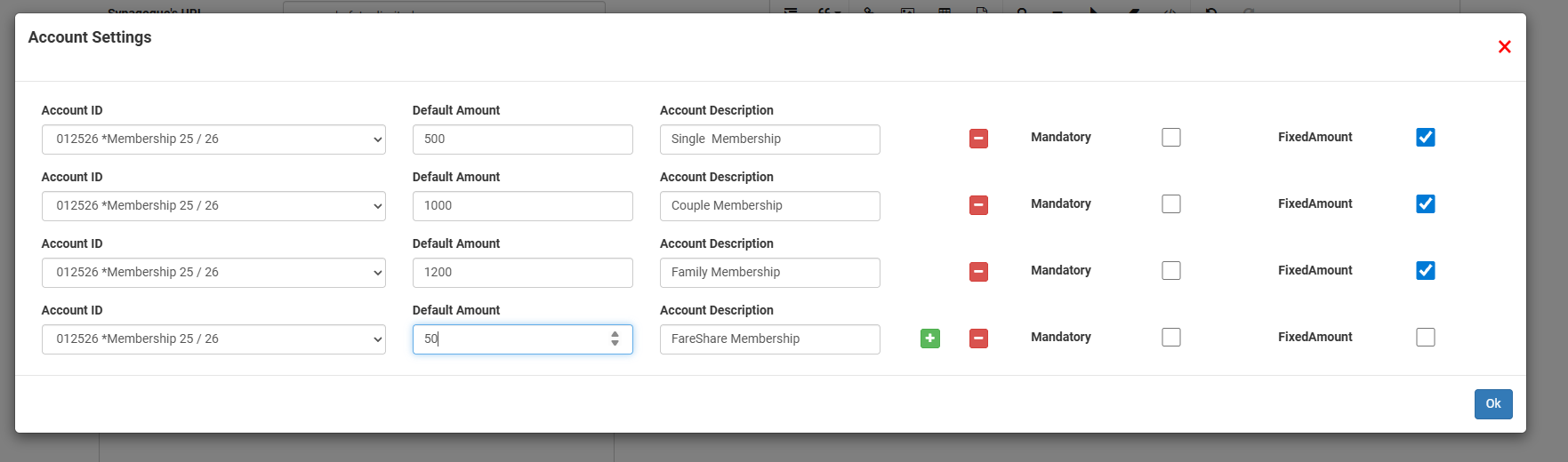
If you want new members to pay dues or membership fees during registration:
- Turn on Enable Payments
- Click Account Settings
- Select the appropriate:
- Income Accounts
- Descriptions
- Values
- If membership dues are fixed, select Fixed Amount.
This integrates directly with your accounting and receivables system. Or Fare Share where members can select their own values to pay.
Step 5: Save and Preview
Click Save.
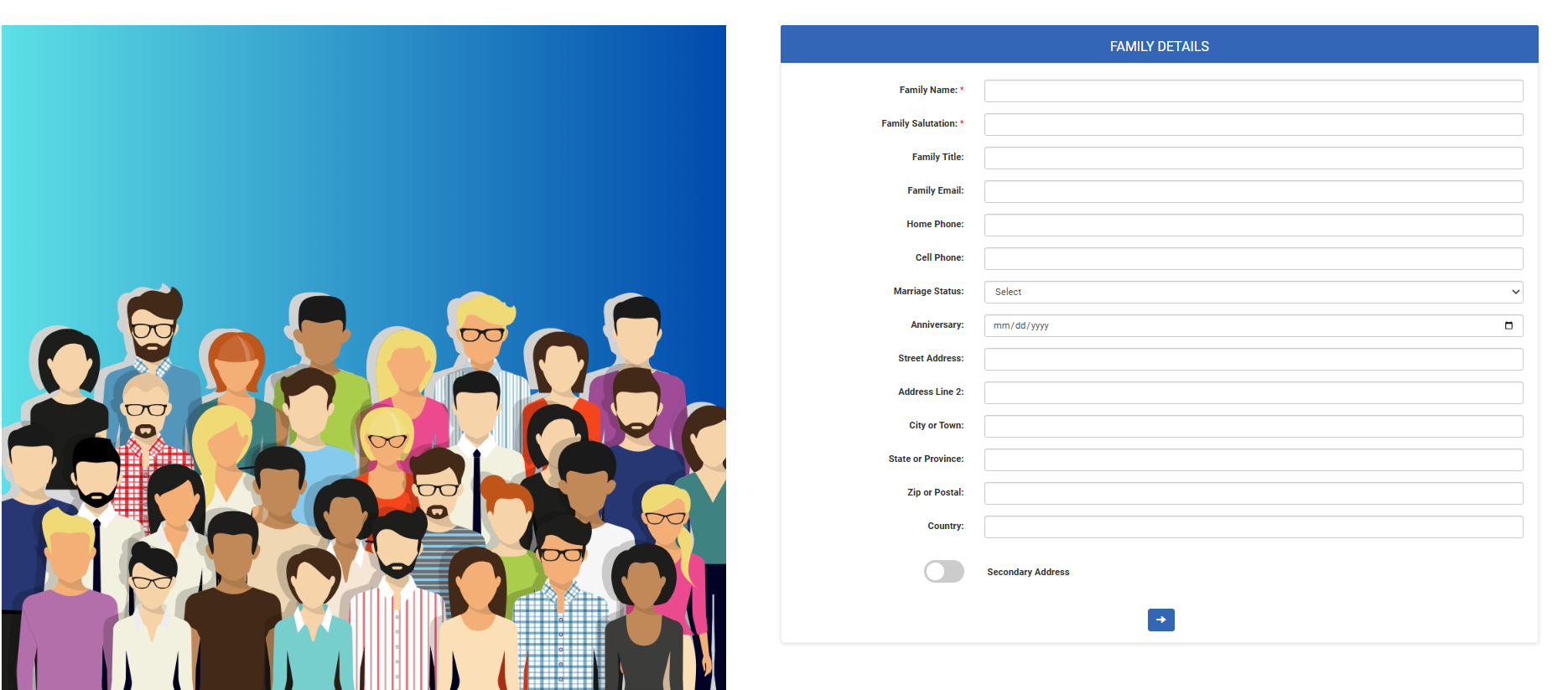
From the Preview Page you can access the URL and iFrame for sharing.

Step 6: Review New Member Applications
When a form is submitted:
- Response emails receive a notification.
- Administrators can review the submission.
- Changes can be made before acceptance.
- Form responses can be printed or exported if needed.
Step 7: Add the Family to the Database
Before promoting the application:
- Assign the correct Family Code.
- Review all submitted information.
- Click Add Family To Database.
The new member is then added as a family profile in RakefetOnline. A Family Code is required before the record can be
saved.
Permissions
Users with the following roles can manage New Member Forms:
- CRM Administrator
- Receivables Administrator
- Database Administrator
Access can also be granted through custom roles.