
To merge one account into another, navigate to:
Setup → GL / Budget / Payables
Then select the Chart of Accounts submenu.
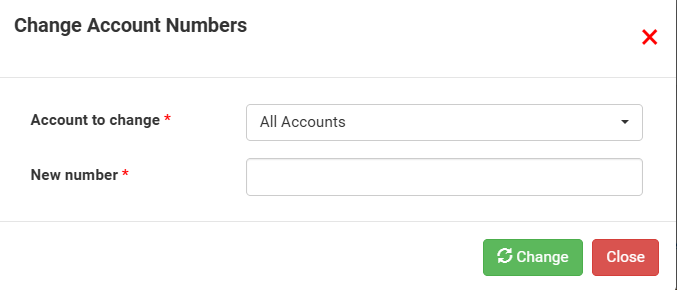
Click the Change Account Numbers button (see image below).
Next, in the “Account to Change” dropdown, select the account you would like to modify.
In the “New Number” field, enter the new account number and click Change.

Account Number Formats:
Income and Expense Accounts: Six-digit numbers
Bank Accounts: Begin with B followed by five digits
Asset Accounts: Begin with A followed by five digits
Liability Accounts: Begin with L followed by five digits
Restricted Accounts: Begin with Q followed by five digits
Important Notes:
If the new account number you enter is already in use, you will receive a warning indicating that continuing will merge the two accounts.
Account number changes and merges are historical, meaning they apply retroactively from the beginning of your financial records.